
Shopify theme customization can make product information easier to find and shopping tasks easier to complete. However, a different layout does not guarantee more sales. Start with a specific customer problem, then test whether your changes help shoppers solve it.
This guide connects store design decisions with practical sales goals. Use it to plan navigation, improve product pages, review mobile usability, and measure results without relying on unsupported promises.
Start Shopify theme customization with a clear goal
First, identify where shoppers struggle. Review customer questions, search terms, and the steps people take before buying. A confusing size selector needs a different response from a slow image gallery or an unclear delivery policy.
Write a simple project brief. Name the problem, the affected pages, the proposed change, and the result you want to observe. For example, move size guidance beside the size selector, then check whether customers can choose a size without asking for help.
Also record your starting point. Keep screenshots, note the current theme version, and save the relevant reports. These records make later comparisons more useful and help you explain why you made each decision.
Use theme customization to clarify navigation
Use familiar category names and clear collection pages. A shopper should understand where a menu link leads before selecting it. Avoid clever labels that hide the products behind them.
As part of theme customization, review search and filters with real product examples. Try a product name, a common description, and an unsuccessful search. Check whether the store offers a helpful next step when nothing matches.
- Keep important collections easy to reach.
- Use consistent names in menus and page headings.
- Remove links to empty or outdated collections.
- Check that filters remain usable on a narrow screen.
Use theme customization for useful product pages
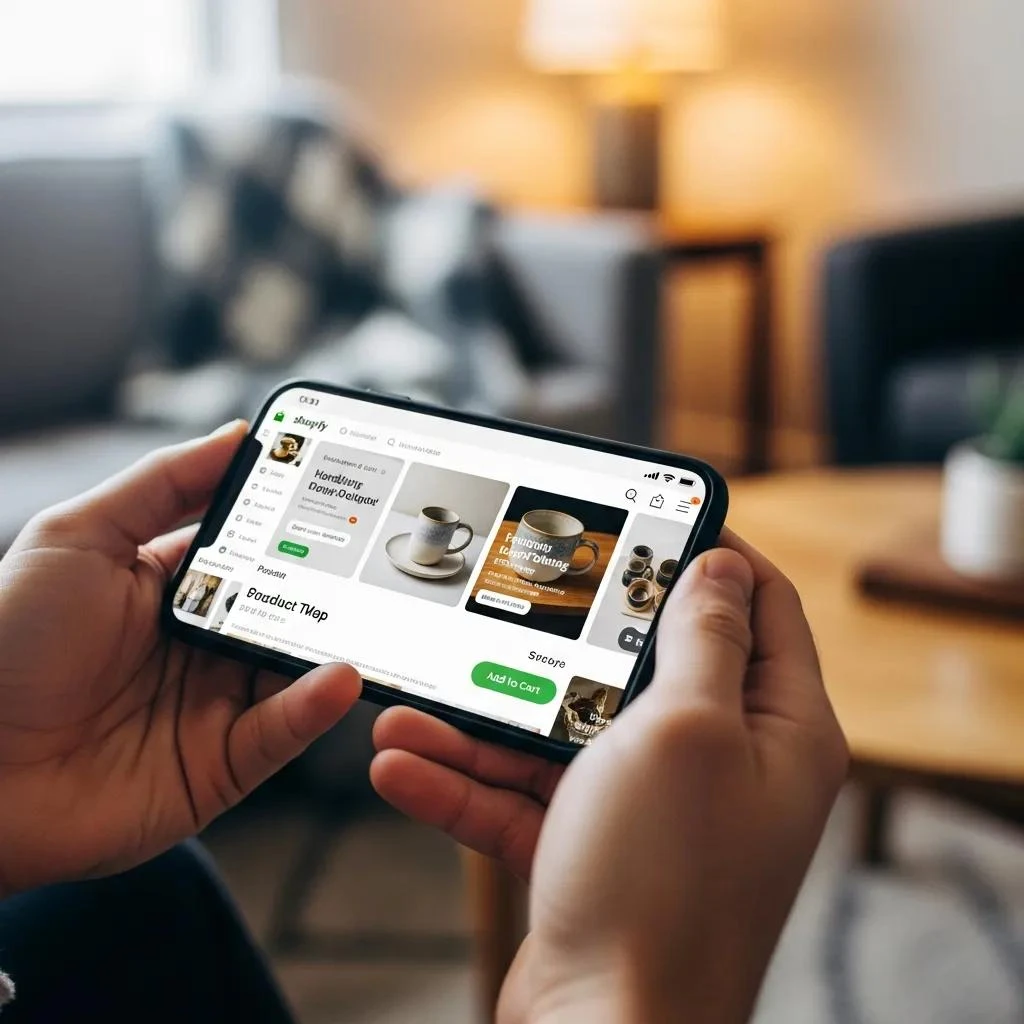
Useful product pages answer buying questions. Put the price, available options, important specifications, and purchase control in a clear order. Explain materials, dimensions, care, or compatibility where those details affect the decision.
Place delivery and returns information near the purchase area when practical. Make the wording accurate and link to the full policy. A theme should present the business’s actual terms clearly, rather than hide them behind vague reassurance.
For brand consistency, use a small set of colors, readable type, and predictable button styles. Ensure that links and controls remain recognizable. Appearance matters most when it helps people understand the next step.
Test Shopify theme customization on mobile
Review the whole shopping journey on a phone. Open the menu, browse a collection, choose product options, add an item, and review the cart. Look for content that overlaps, buttons that are difficult to tap, and banners that cover essential controls.
Then repeat key tasks with a keyboard on a larger screen. Check that the focus indicator is visible and follows a sensible order. Give forms clear labels and explain errors in words so shoppers know how to recover.
Test long product names and unavailable options as well. These cases can reveal layout problems that a polished demonstration page misses. Keep a short issue list with the device, page, steps, and expected behavior.
Keep images and extra features purposeful
For practical theme customization, choose images that help shoppers evaluate the product. Provide useful views, retain enough detail, and avoid uploading unnecessarily large files. Write descriptive alt text for meaningful images without repeating the same keyword everywhere.
Before adding an app or animation, ask which customer task it supports. Extra features can introduce new controls and maintenance work. Review the store after each addition, especially when several tools affect the same page.
For implementation reference, consult the Shopify Help Center. Check the instructions against your actual theme and store setup before changing code. Keep a backup and test changes in a separate theme copy where possible.
Measure sales results carefully

Measure theme customization by tracking completed purchases alongside the steps that lead to them. Review product views, cart additions, checkout starts, and customer questions. Use consistent reporting definitions and compare similar periods.
A higher conversion rate after a redesign does not prove the design caused it. Discounts, traffic sources, stock availability, and seasonal demand can also change results. Record these factors before drawing conclusions.
If you run a controlled comparison, decide what you will measure before starting. Avoid changing several unrelated features at once. Also check for errors and complaints, because a sales metric alone may miss a frustrating experience.
Plan the next improvement
Shopify theme customization works best as a series of focused decisions. Fix a known problem, verify the shopping task, and review the evidence. Keep useful changes and reconsider those that add complexity without helping customers.
For support connecting store improvements with a broader plan, explore our digital marketing services. Bring your project brief, examples of customer friction, and current reports so the discussion starts with concrete needs.
